How to Get Discord on Steam Deck
12 August 2026 | 365
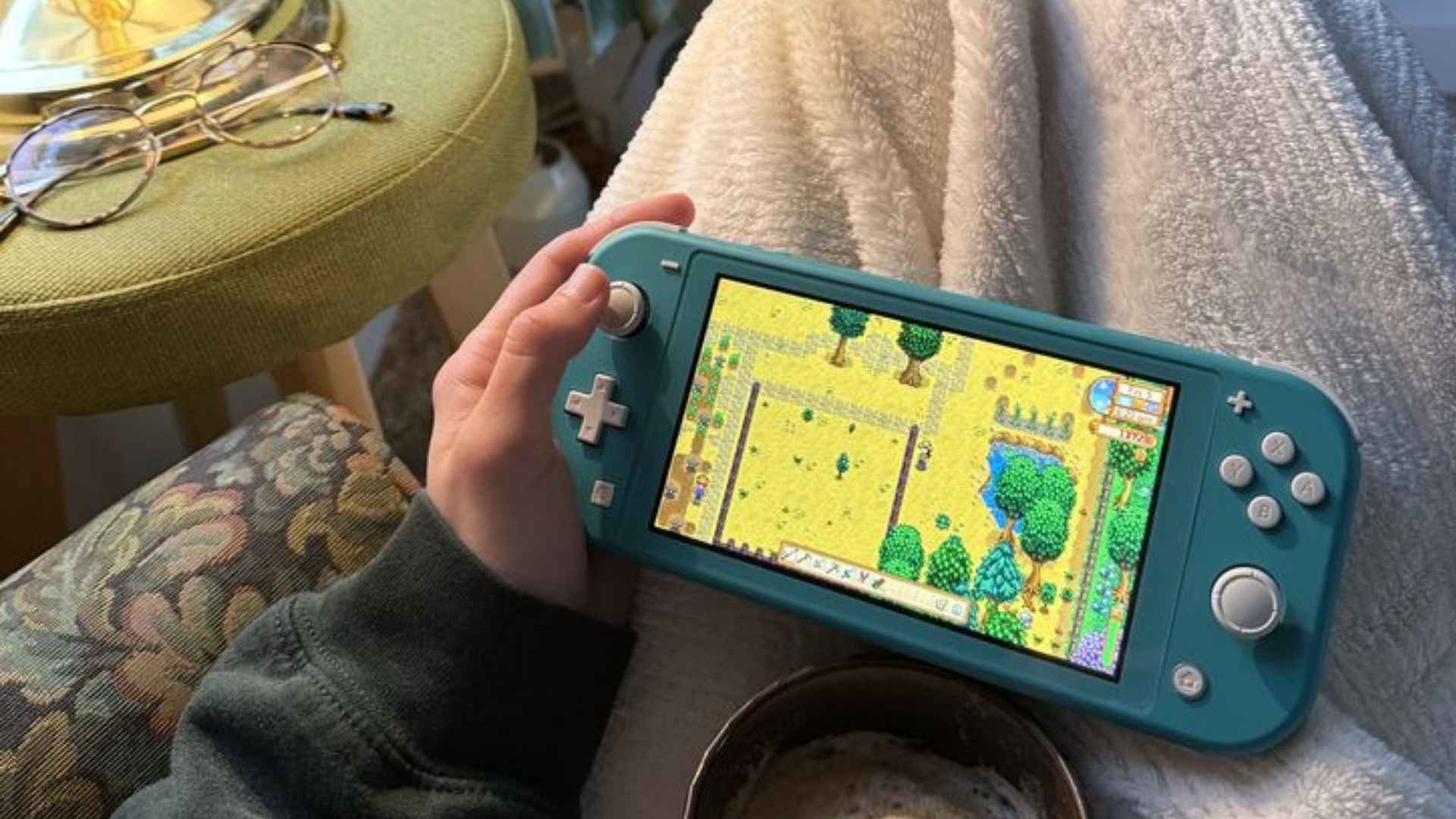
Valve's Steam Deck has transformed handheld PC gaming, allowing players to carry their entire game library wherever they go. However, staying in touch with gaming communities requires voice chat, making communication essential during cooperative play sessions. Learning how to get Discord on Steam Deck allows players to seamlessly chat with friends while enjoying their favorite titles.
Switching to Desktop Mode on Steam Deck
To begin the installation process, you must access the desktop interface built into SteamOS. Hold down the power button or press the Steam button to open the power menu, then choose the option to switch to Desktop Mode. This transitions your device from the gaming interface into a full Linux desktop environment.
Navigating Desktop Mode is best done using the right trackpad as a mouse cursor and the trigger buttons to click. Alternatively, connecting a physical keyboard and mouse via USB-C simplifies entering account credentials and searching for applications. Once in Desktop Mode, you gain full access to system tools and software repositories.
Installing Discord via the Discover Store
Locate the blue shopping bag icon on your taskbar, which opens the Discover Software Center. Use the search bar at the top left of the application to type Discord into the directory. Click the install button next to the official application entry to download the Flatpak version to your handheld device.
After the installation finishes, open Discord from the application menu to log into your account. Scanning the provided QR code using the mobile app on your smartphone offers the quickest login method. Once verified, your channels and direct messages will be ready to use.
Adding Discord to Steam for Gaming Mode Access
To use voice channels seamlessly while playing games, you must add the program to your Steam library. Open the Steam desktop application, click the Games menu at the top, and select the option to add a non-Steam game. Scroll through the list of installed software, check the box next to Discord, and confirm the addition.
Return to the gaming interface by clicking the shortcut on the desktop labeled Return to Gaming Mode. Launching Discord from your library allows it to run in the background while you play. You can easily switch between your active game and voice chat using the Steam overlay menu during gameplay sessions.
Optimizing Audio and Performance Settings
Configuring your microphone and speaker settings ensures clear voice quality during intense multiplayer matches. Open the audio settings within Discord to verify that the Steam Deck built-in microphone or your connected headset is selected as the default input device. Enabling noise suppression features helps minimize ambient fan noise while playing resource-heavy titles.
Managing background performance prevents frame drops while running both a game and voice software simultaneously. Adjusting overlay settings and disabling hardware acceleration inside the application settings helps save memory and battery life. These small tweaks guarantee a smooth handheld gaming experience without sacrificing communication quality.